
Communication via Parent Portal & Parent App
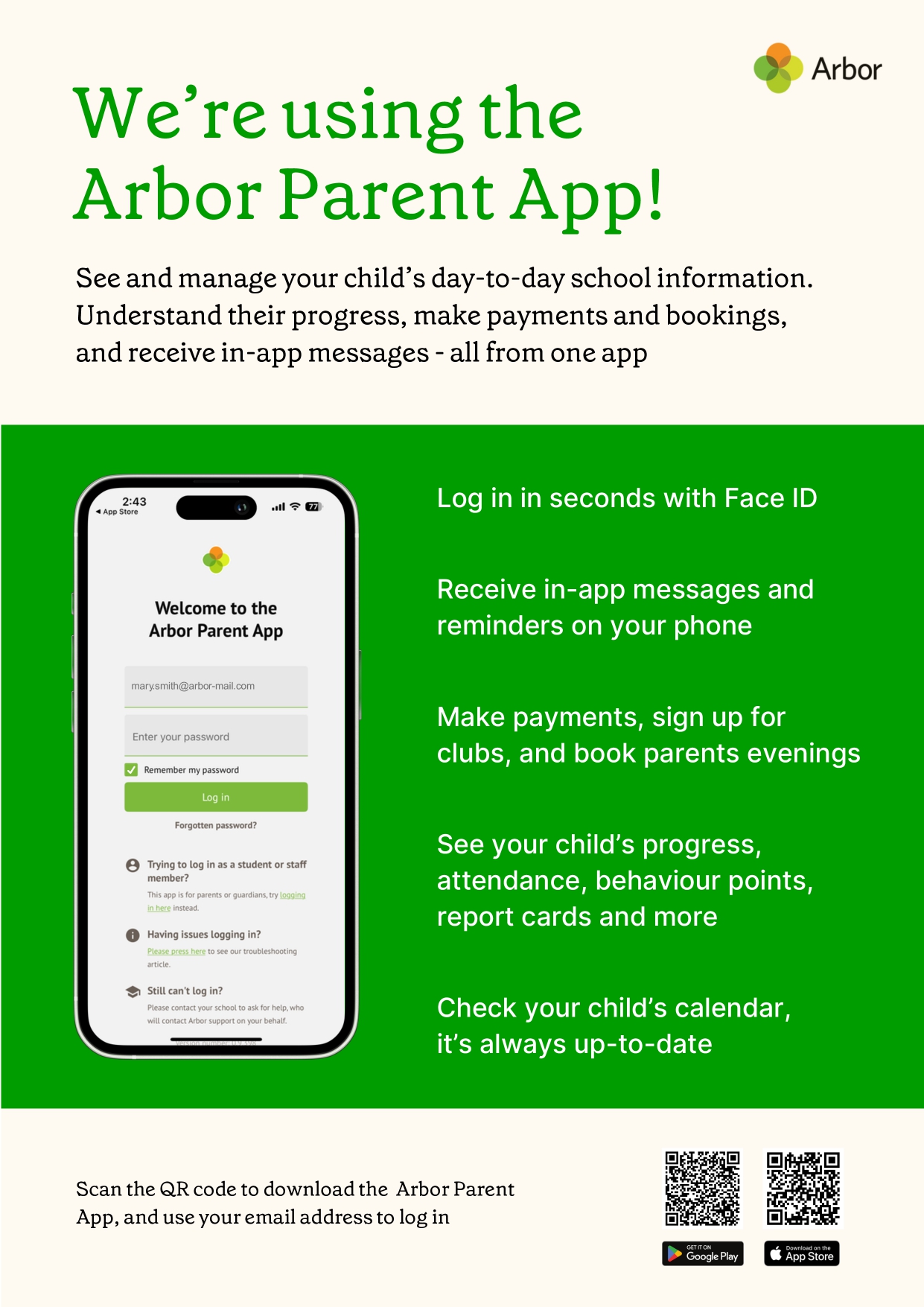
Please note that only parents who have a guardian profile at St James' can use the Parent App. School staff and teachers cannot log in.
The Parent App is the mobile version of our Parent Portal, for use on mobile devices such as smartphones and tablets. Parents can download the Parent App for free from either the Play store for Android phones or the App Store for IOS.
Arbor Education online system is a data system that allows you to view your child's attendance, data information, register for clubs, and pay for trips.
When your child starts at St James', you will receive a welcome email from Arbor. It is important when you receive the email that you activate your Arbor account via parent portal, as we will be sending you communications via Arbor.
The email will contain your login information to access Arbor, where you will be able to view your child's attendance data and the information we hold for you (eg: name, address, email, contact details).
Process
1. You will receive a 'welcome to Arbor' email from St James' Church of England Junior School
2. Within that email it will have a link to login. Click on login
3. The Arbor site will appear, input your email address and click 'forgot password'
4. You will receive a password link sent by email from St James' Church of England Junior School (please check your junk/spam folder)
5. Using the username and password in the email, login to Arbor
6. Verify account
7. Enter the Date of birth of your child
8. Verify
9. Account verified - you will see your child's data! (see example below).
Once you have logged into Arbor, check the data information we hold for you is correct. You will be able to amend any information to update your contact details. You, as parent, have the facility to change data, you do not need to inform the school office if the data is incorrect.
Your Homepage Dashboard
The dashboard is the first screen that you will see. This gives a quick glance of the student’s daily timetable, behaviour points, meals, notices, current attendance and progress.
You can see your in-app messages by clicking this button under your child's photo.
You can return to this page at any time by clicking on the school’s logo or choosing Dashboard from any menu. On the homepage you'll also see sections for:
-
Statistics - This shows information about the student's attendance, behaviour and progress statistics for the current term.
-
Accounts - The Accounts section loads the student's account balances. Lunches will still be paid via Parentpay.
-
Trips - Sign your child up for trips.
-
Clubs - Sign up to After School clubs.
-
School Shop - Make purchases for items.
Being a guardian for multiple children - switching students
If you are the Primary Guardian for more than one child in the school, you can access and view each child through the same portal.
On the Parent Portal
On the left-hand side of your homepage, click the arrow next to the current child's name. Select the other child.
When doing this for the first time, you will need to enter your other child’s date of birth.
On the Parent App
Click the profile icon at the bottom right of your screen and click Switch student.
Choose which child you would like to view.
If this is the first time you are viewing information for this child, you will have to confirm their birth date.
Available data on your child
If your child's school has granted access, you will be able to click on different parts of the home page to view more data on your child.
For example, clicking the attendance percentage will bring up the attendance page which breaks down the attendance figures into present, late, or absent.
Once you've clicked on Attendance or another item, you will see a menu appear like so in the left-hand side of the page you are now on:
Student Profile
Access your child's profile by clicking the View Student Profile button on your homepage.
This allows you to see basic information about your child, and highlights any unread notices or actions needing to be completed. You will be able to amend details such as your contact details, medical information, consents, and so on.
From here you can access more areas of their profile for:
-
Attendance - The summary page shows statistics and recent attendance for the academic year as shown. The Attendance By Date page is a breakdown of the student’s attendance, day by day with the mark.
-
Behaviour - View the positive and negative behaviour points given as well as any comments that may have been written about the instances.
-
Report cards - All the report cards that your school has published for your child will be available here.
-
Progress - You can view your child's current grades here.
-
Examinations - In this section, you can view and download the student's Exams timetable for the current year.
-
Payments - Manage your outstanding payments.
Login Issues for Parent Portal and App
This guide provides troubleshooting tips to help you log into your school's Parent Portal or Parent App. It's recommended you try these steps before contacting your school for assistance.
Please note: Only parents with a guardian profile added to the school's site can use the Parent App, and school staff and teachers cannot access it.
1. Verify Your Login Information
-
Make sure you are using your email address as your username.
2. Password Issues
Forgot your password?
-
Click the Forgot your password? link on your login page to receive a password reset email.
-
If the email does not arrive, contact your school to request one. They can manually send you a reset password email or set a new password that you can change after you log in.
Haven't received a login or password reset email?
-
First, confirm with your school that the email address you are using is the one they have on file for your account. They can edit it if it is incorrect.
-
If your email address is correct on their side but you still aren't receiving the email, ask your school to manually send you a reset email or set a new password for you.
-
If your email address is used on more than one school site, you may not be able to get a reset password email for the most current site yourself. To prevent future issues, contact the old school to have them remove or change the email address from that account
Expired Login Link
-
If you are trying to log in using a link from an email, be aware that the link will not work if it was sent more than 96 hours ago.
Log into the Parent Portal and the Parent App – Arbor Help Centre
Having Problems?
1. Downloading the Parent App
For Android devices:
- Go to your device's Play Store.
- Search for 'Arbor' and tap the top result: "Arbor Parent & Guardian Portal"
For iOS (Apple) Devices:
- Go to your device's App Store.
- Search for 'Arbor' and tap the top result
2. Logging into the Parent Portal or App
Once you have the app or are on the Parent Portal website, follow these steps to log in.
Important: Your school needs to have enabled the Parent Portal for you to log in. If you haven't received a welcome email or login details, please contact your school directly.
A. First-Time Login (Setting Your Password)
If this is your first time logging in, you'll need to set your password. Your school will send you a welcome email with a link to do this.
-
Find the Welcome Email: Look for an email from Arbor in your inbox.
- Tip: If you can't find it, check your junk or spam folder!
- Click the Login Link: Inside the email, click on the unique login link provided. This link will take you to a secure page to set up your account.
- Set Your Password:
- Enter your chosen password into the Password field.
- Enter it again into the Confirm Password field.
- Make sure your password meets the criteria (e.g., length, characters) shown on the screen.
- Click the Set Password button.
- Log In: You'll then be redirected to the login page. Enter your email address (the one your school has for you) and your newly set password, then click Log In.
B. Logging in with an Existing Account
If you've already set up your password, you can log in directly:
-
Open the App or Go to the Portal:
- On your mobile device, open the Arbor Parent App.
- On a computer, navigate to the Arbor Parent Portal website.
- Enter Your Details:
- In the Email address field, enter the email address your school has on record for you.
- In the Password field, enter your password.
- Click Log In: Tap or click the Log In button.
C. Forgot Your Password?
If you've forgotten your password, don't worry! You can easily reset it:
- Click "Forgot Password": On the login screen, click the Forgot password? link.
-
Enter Your Email: Type in the email address your school has for you.
- Click Reset Password: Click the Reset Password button.
- Check Your Email: You will receive an email from Arbor with a link to reset your password. Click this link and follow the on-screen instructions.
Logging in on the Parent App
Save your password and fill it in automatically using your phone's built-in Face ID, fingerprint scan or pin entry.
Top Tip: You will need to download the latest version from the app store to use biometric login:
- The version number for iOS for biometric login is 24.1
-
The version number for Android is 35 (24)
Logging in for the first time
When you open the app for the first time, you'll be prompted to add in your email address and password.
The Remember my password box will be ticked by default but you can untick it if needed. This allows Arbor to remember your password the next time you log in.
Make sure both your email address and password are correct, or you'll receive this message.
When your email address and password are correct, we'll check your biometric details - either by Face ID, fingerprint scan or pin entry.
- Once the check is successful, biometric login will be enabled for the next time you log in, and you won't need to input your Arbor password.
- You need to ensure one of these options is enabled to be able to save your password, or you'll need to untick the box.
Next you'll need to select your school. If you have accounts on more than one school, there'll be a tick next to any schools your password works for.
- Click on a school with a tick to be logged right in.
- Click on a school without a tick to input your alternative password for that school.
Once you input your alternative password, it'll save this password for next time.
If you have more than one child at the school, please select the child you wish to view. Don’t worry, you can select another child once you are logged in.
Returning to log in again
When you open your Parent App and you chose to save your password, we'll run a biometric check.
Please note that if you haven't logged into the Parent App for 1 month, you'll need to enter your password the next time you log in.
We'll then automatically log you in with your email and password - just click on the school with the tick.
If the biometric login fails, a message will be displayed (this will vary based on device OS) and you'll need to retry or enter your passcode to be able to select your school.
If you fail all authentication, you'll have the option to input your Arbor password.
Logging out
From Parent Portal
To log out, just click the Sign out link at the top-right of your page.
You will also be automatically logged out after a period of two hours of inactivity. If you click back into your Arbor tab just before the time is up, you can choose whether to remain logged in.
From the Parent App
You will automatically be logged out of the Parent App after 30 minutes of inactivity. You can also log out by using the logout feature or by closing down the Parent App completely (see instructions below).
Tap the profile icon in the bottom right of your screen and select Logout.
Closing the Parent App
On Android, for example on a Samsung Galaxy S8, you can close the Parent App by clicking the vertical bars icon at the bottom left of your screen. Swipe the Parent App up to close it and you will be logged out.
On IOS, for example on an iPhone SE, you can close the Parent App by clicking the home button twice. Swipe the Parent App up to close it and you will be logged out.
Resetting my password
Having difficulty resetting your password? There are a number of reasons why you may be struggling to log in to the Parent App or Parent Portal. Use the tips in this article before raising an issue with your school: Troubleshooting login issues - why can't I log in?
From within the Arbor Parent Portal
Go to My Items > My Account. Add in your new password details.
From within the Parent App
If you are logged into the Parent App, you can change your password by clicking the profile icon, then clicking your name.
You will then be able to see your account details including your non-email username. Click to change your password.
On the next screen, type in your current password and your new password, then Change Password.
I’ve forgotten my password
Reset your password for the Parent Portal
Click the Forgot your password? link on the login page to be sent a reset password email.
Reset your password for the Parent App
If you have accessed Arbor previously and have forgotten your password, select the Forgotten password? option when signing in to the Parent App.
This will take you to a second screen where you can enter your email to generate a password change email.
FAQ
Can I log in using a username?
Although we recommend users use their email addresses to log in, your school may have given you a username.
- You can use your non-email username when logging into the Parent Portal using the school-specific login page.
- You cannot log in using your non-email username (you need to use your email address) when logging into the generic login page, and the Parent App.
Why is it showing me the wrong school?
Please follow these instructions: Wrong or old school when I try to log in
Why can't I log in?
Having difficulty logging in? There's a number of reasons why you may be struggling to log in to the Parent App or Parent Portal. Use the tips in this article before raising an issue with your school: Troubleshooting login issues - why can't I log in?
Do I need to put my password in every time?
No, you don't have to put your password in every time. Please see here for further details: Do I have to put my password in every time to log in?