
Parental Communication via Parent Portal and Parent App
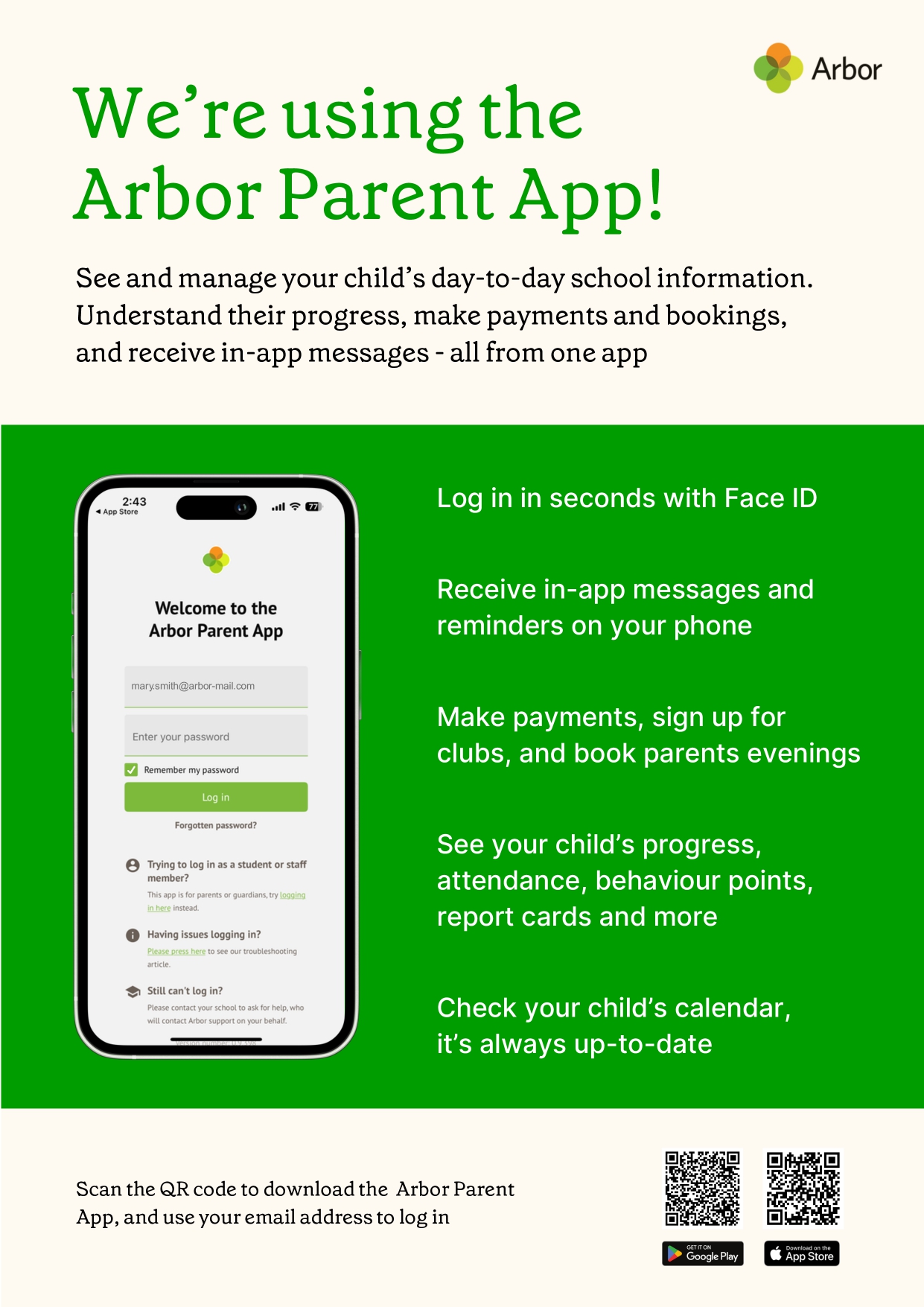
The Arbor Education online system is a data system that allows you to view your child's attendance, data information, register for clubs, pay for swimming, trips and buy ties, book bags and house t-shirts.
When your child starts at St James', you will receive a welcome email from Arbor. It is important when you receive the email that you activate your Arbor account via parent portal, as we will be sending you communications via Arbor.
The email will contain your login information to access Arbor, where you will be able to view your child's attendance data and the information we hold for you (eg: name, address, email, contact details).
Process
1. You will receive a 'welcome to Arbor' email from St James' Church of England Junior School
2. Within that email it will have a link to login. Click on login
3. The Arbor site will appear, input your email address and click 'forgot password'
4. You will receive a password link sent by email from St James' Church of England Junior School (please check your junk/spam folder)
5. Using the username and password in the email, login to Arbor
6. Verify account
7. Enter the Date of birth of your child
8. Verify
9. Account verified - you will see your child's data! (see example below).
Once you have logged into Arbor, check the data information we hold for you is correct. You will be able to amend any information to update your contact details. You, as parent, have the facility to change data, you do not need to inform the school office if the data is incorrect.
Your Homepage Dashboard
The dashboard is the first screen that you will see. This gives a quick glance of the student’s daily timetable, behaviour points, meals, notices, current attendance and progress.
You can see your in-app messages by clicking this button under your child's photo.
You can return to this page at any time by clicking on the school’s logo or choosing Dashboard from any menu. On the homepage you'll also see sections for:
-
Statistics - This shows information about the student's attendance, behaviour and progress statistics for the current term.
-
Accounts - The Accounts section loads the student's account balances. Lunches will still be paid via Parentpay.
-
Trips - Sign your child up for trips.
-
Clubs - Sign up to After School clubs.
-
School Shop - Make purchases for items.
Being a guardian for multiple children - switching students
If you are the Primary Guardian for more than one child in the school, you can access and view each child through the same portal.
On the Parent Portal
On the left-hand side of your homepage, click the arrow next to the current child's name. Select the other child.
When doing this for the first time, you will need to enter your other child’s date of birth.
On the Parent App
Click the profile icon at the bottom right of your screen and click Switch student.
Choose which child you would like to view.
If this is the first time you are viewing information for this child, you will have to confirm their birth date.
Available data on your child
If your child's school has granted access, you will be able to click on different parts of the home page to view more data on your child.
For example, clicking the attendance percentage will bring up the attendance page which breaks down the attendance figures into present, late, or absent.
Once you've clicked on Attendance or another item, you will see a menu appear like so in the left-hand side of the page you are now on:
Student Profile
Access your child's profile by clicking the View Student Profile button on your homepage.
This allows you to see basic information about your child, and highlights any unread notices or actions needing to be completed. You will be able to amend details such as your contact details, medical information, consents, and so on.
From here you can access more areas of their profile for:
-
Attendance - The summary page shows statistics and recent attendance for the academic year as shown. The Attendance By Date page is a breakdown of the student’s attendance, day by day with the mark.
-
Behaviour - View the positive and negative behaviour points given as well as any comments that may have been written about the instances.
-
Report cards - All the report cards that your school has published for your child will be available here.
-
Progress - You can view your child's current grades here.
-
Examinations - In this section, you can view and download the student's Exams timetable for the current year.
-
Payments - Manage your outstanding payments.
Login Issues for Parent Portal and App
This guide provides troubleshooting tips to help you log into your school's Parent Portal or Parent App. It's recommended you try these steps before contacting your school for assistance.
Please note: Only parents with a guardian profile added to the school's site can use the Parent App, and school staff and teachers cannot access it.
1. Verify Your Login Information
-
Make sure you are using your email address as your username.
2. Password Issues
Forgot your password?
-
Click the Forgot your password? link on your login page to receive a password reset email.
-
If the email does not arrive, contact your school to request one. They can manually send you a reset password email or set a new password that you can change after you log in.
Haven't received a login or password reset email?
-
First, confirm with your school that the email address you are using is the one they have on file for your account. They can edit it if it is incorrect.
-
If your email address is correct on their side but you still aren't receiving the email, ask your school to manually send you a reset email or set a new password for you.
-
If your email address is used on more than one school site, you may not be able to get a reset password email for the most current site yourself. To prevent future issues, contact the old school to have them remove or change the email address from that account
Expired Login Link
-
If you are trying to log in using a link from an email, be aware that the link will not work if it was sent more than 96 hours ago.
Log into the Parent Portal and the Parent App – Arbor Help Centre
Logging In
Never logged in before? Visit this article to see how to get logged in: Getting started - Log into Parent Portal and the Parent App
Having trouble logging in? Work through these troubleshooting tips with your school: Why can’t parents log in?
Your Homepage Dashboard
The dashboard is the first screen that you will see. This gives a quick glance of the student’s daily timetable, behaviour points, meals, notices, current attendance and progress.
You can see your in-app messages by clicking this button under your child's photo.
You can return to this page at any time by clicking on the school’s logo or choosing Dashboard from any menu. On the homepage you'll also see sections for:
- Statistics - This shows information about the student's attendance, behaviour and progress statistics for the current term.
- Guardian consultations - The Guardian Consultations section allows guardians to book time for Parents Evening meetings by selecting one of the available slots as per the School's setup.
- Assignments - This section shows any homework or coursework assignments that are due, overdue or marked.
- Accounts - The Accounts section loads the student's current Meals and other top-up account balances.
- Trips - Sign your child up for trips.
- Clubs - Sign up to standard clubs or Breakfast and After School clubs.
- School Shop - Make purchases for items.
Being a guardian for multiple children - switching students
If you are the Primary Guardian for more than one child in the school, you can access and view each child through the same portal.
On the Parent Portal
On the left-hand side of your homepage, click the arrow next to the current child's name. Select the other child.
When doing this for the first time, you will need to enter your other child’s date of birth.
On the Parent App
Click the profile icon at the bottom right of your screen and click Switch student.
Choose which child you would like to view.
If this is the first time you are viewing information for this child, you will have to confirm their birth date.
Available data on your child
If your child's school has granted access, you will be able to click on different parts of the home page to view more data on your child.
For example, clicking the attendance percentage will bring up the attendance page which breaks down the attendance figures into present, late, or absent.
Once you've clicked on Attendance or another item, you will see a menu appear like so in the left-hand side of the page you are now on:
Student Profile
Access your child's profile by clicking the View Student Profile button on your homepage.
This allows you to see basic information about your child, and highlights any unread notices or actions needing to be completed. You will be able to amend details such as your contact details, medical information, consents, and so on.
From here you can access more areas of their profile for:
- Calendar and Timetable
- Attendance - The summary page shows statistics and recent attendance for the academic year as shown. The Attendance By Date page is a breakdown of the student’s attendance, day by day with the mark.
- Behaviour - View the positive and negative behaviour points given as well as any comments that may have been written about the instances.
- Report cards - All the report cards that your school has published for your child will be available here.
- Progress - You can view your child's current grades here.
- Examinations - In this section, you can view and download the student's Exams timetable for the current year.
- Payments - Manage your outstanding payments.